Einstellungen
 Schnelle Lieferung
 Kostenlose Lieferung
 Incoterms
 Zahlungsmethoden


 Marketplace-Produkt

Don’t Fear Ubuntu: How to Install It Successfully on Your First Try
2026-03-25 | By Hector Eduardo Tovar Mendoza
My first introduction to robotics was with ROS2, but for this framework, I needed a Linux distribution. I was recommended to install Ubuntu, and wow, it has a lot of features, especially for robotics! For example, NVIDIA Jetsons (the GPUs used to train, simulate, and test robots) are based on Ubuntu. This is why Ubuntu is a powerful system for robotics and much more!
Most people, when introduced to Linux, believe that their computer will go wrong or get hacked. On the contrary, Linux, being open source, allows for highly robust security. Also, you are able to install it as a dual boot, which is exactly what we are going to do here.
But what is that? A dual-boot installation means having two operating systems on the same computer. How is that possible? Well, your SSD (storage) is able to handle 2 to 3 operating systems (though I highly recommend only 2 to avoid further issues). This will NOT uninstall any data or damage your computer, despite what you might think.
So, what version shall we use? Well, it depends highly on what you want to do. I am choosing Ubuntu 22.04 because it is compatible with ROS2 Humble. I MADE THIS CHOICE because I work with this distribution of ROS2. You can install Ubuntu 24.04 or whatever you want; even if you have compatibility issues later, you can use a Docker container (I will explain this in another blog), but for now, let's say we are installing Ubuntu 22.04.
First, you’ll have to search for the version like this:
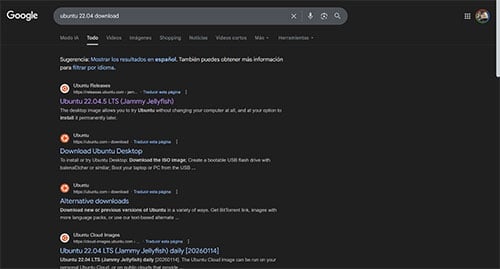
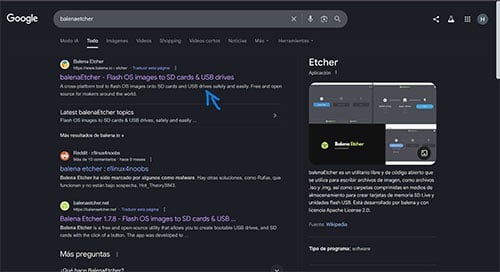
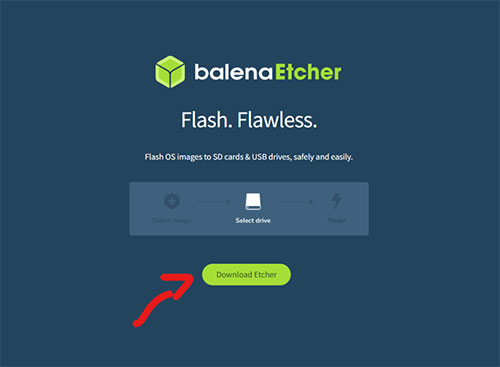
Now that we have the ISO downloaded, we want to flash this OS onto a USB drive. For this, we will use BalenaEtcher since it is useful for flashing USBs for Linux systems.
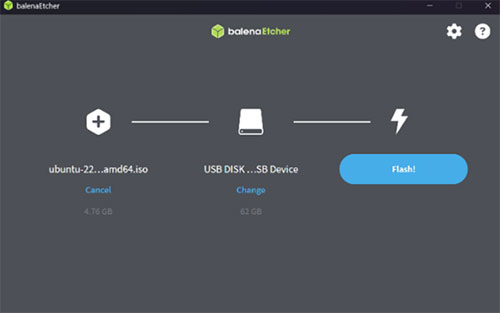
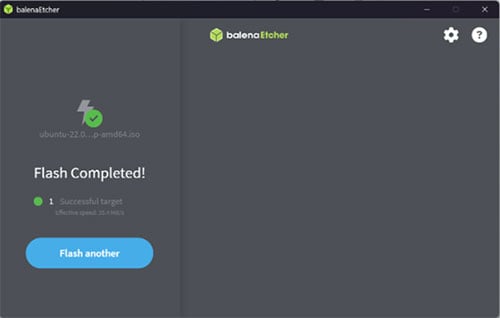
Select the ISO file you previously downloaded, then select the USB drive, and click on "Flash." This will take around 3 to 10 minutes. After that, you’ll see that the flash is completed.
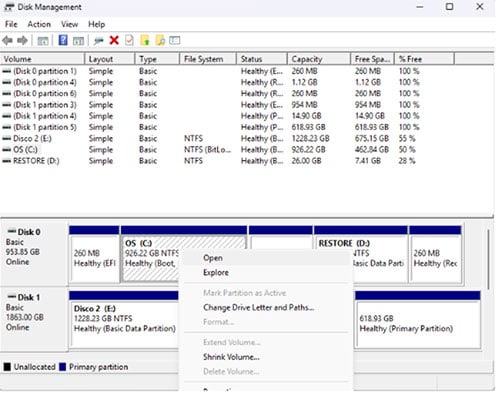
Now that we have the bootable USB, we have to create space on our storage for Ubuntu. You can add less or more—it's your choice—but I usually recommend 200 GB. To do this, search for "Create and format hard disk partitions" in Windows. Open it, and you shall see your storage partitions.
For this process, I bought a new disk, but you can use your main disk. Right-click on it, select "Shrink Volume," and enter the space you’ll use for Ubuntu. Note that the measurement is in megabytes:
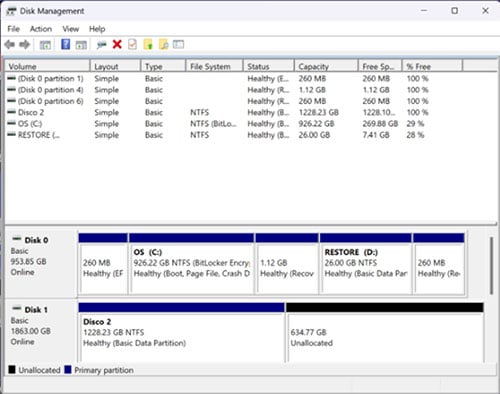
After that, you shall see a space labeled "Unallocated." That is the space where we are going to install Ubuntu.
Now that we have this ready, we need to enter the BIOS. In this step, you must keep one thing in mind: BitLocker. This is a lock inside Windows that might ask you for a code from your Microsoft account. Refer to this link to check if you have it. Once you have the code (or if you don't have BitLocker enabled), turn off the computer.
Turn it back on, and while it is turning on, press F2, DEL, or the key your computer brand provides (for ASUS, it's F2). Press it several times to be sure you did it right. After that, you’ll see the BIOS menu.
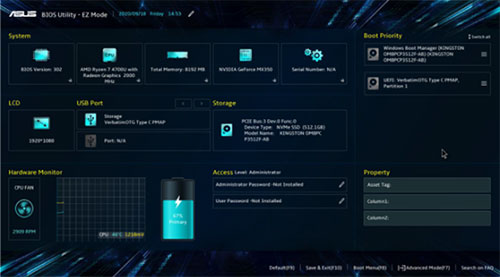
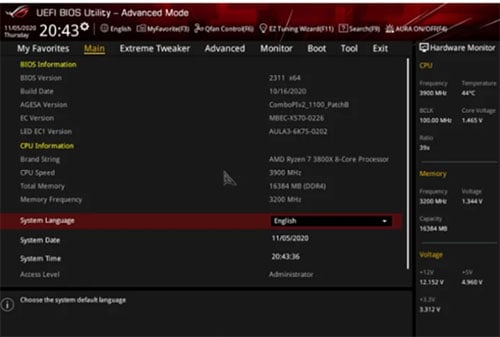
You’ll have to search for the "Boot menu." In the image, it is found by clicking on "Advanced Mode," or it can be at the top part of the menu labeled "Boot." There are plenty of different ways to find it. For example, here on an ASUS, you only click F8, and several options will appear. Choose the one that says "USB Ubuntu" (or something similar). After selecting it as the booting option, you’ll see this view:
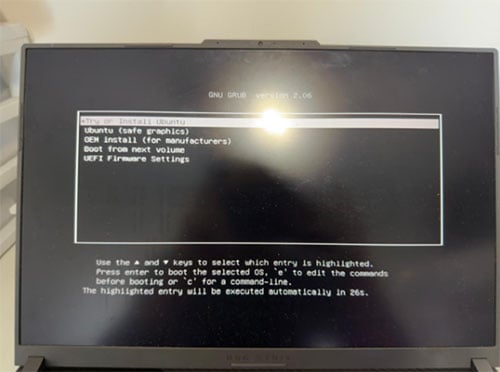
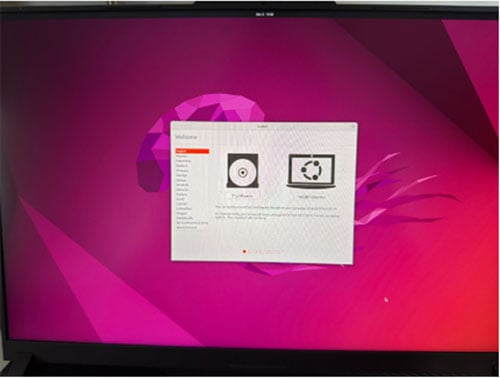
Since we are installing Ubuntu, select "Try or Install Ubuntu." After clicking it, the Ubuntu system and its installation process will appear. The first step is to click "Install Ubuntu," and then it will ask you for your keyboard layout and basic setup settings.
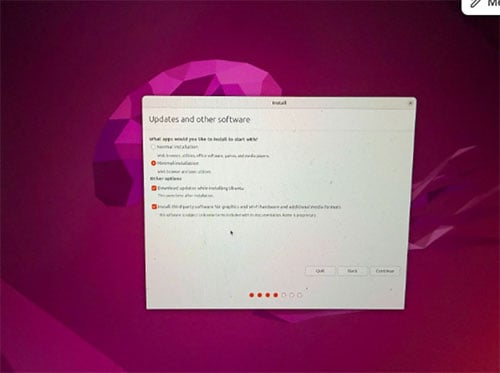
After doing that, it will go to the next page. I highly recommend "minimal installation" since it contains the essential apps you will use, and it takes less time to install.
Now it will ask about the installation type. You must select "Something else." (Or, if you want only Ubuntu on your laptop, you can select the first option to erase the disk.)
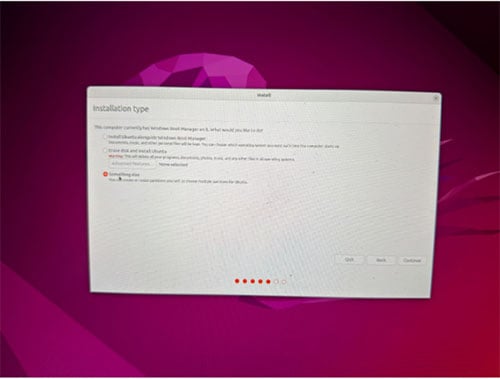
Now, a bar will appear indicating the space on your drive:
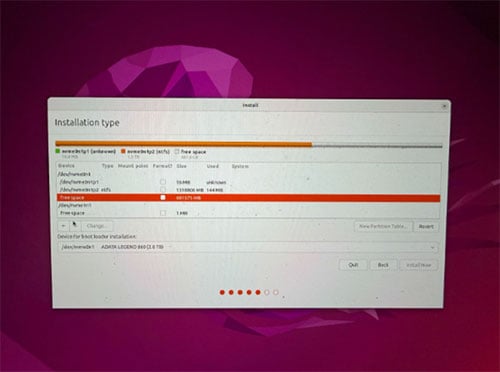
For this part, you will search for the free space; for example, here it's the one I chose for my Ubuntu, so for this, we should select the + button, and then we should divide the memory into 3 parts:
- EFI Partition: We should allocate around 500 MB to 1000 MB. Click OK.
- Swap Area: Click the + button again. Add 16 GB of space if you have less than 16 GB of RAM on your computer (if you have more, 4 GB is great). For the "Use as" option, select "swap area."
- Root Partition: Finally, do the process again with the remaining space and set the mount point to /. This will be the place where it stores all the data, apps, and so on.
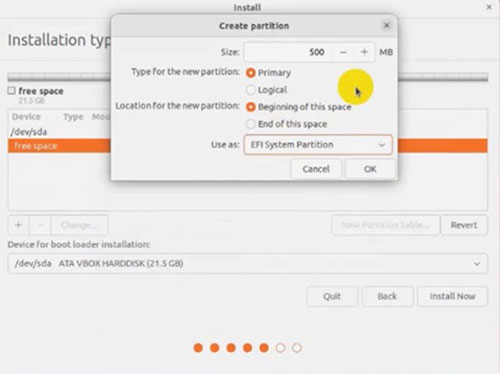
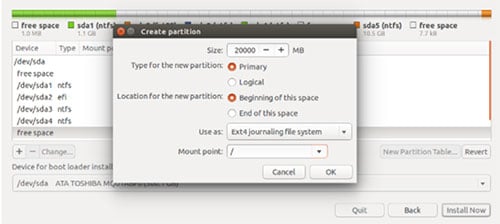
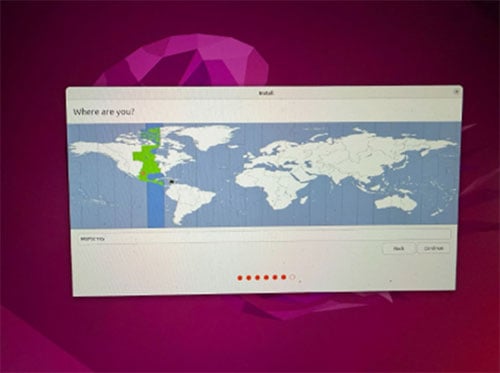
After that, click on "Install Now." It will say that the free space you selected will be partitioned. This is okay! Then you will see the region location selection—that's an easy step.
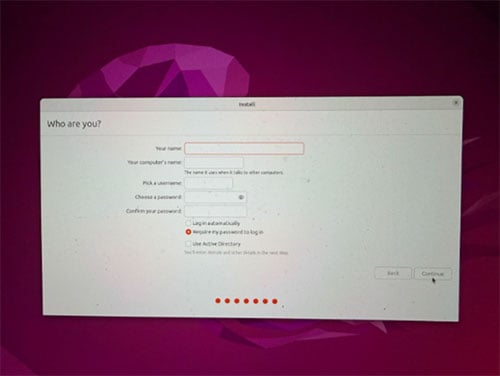
Then you should fill in all the information regarding your profile username and password. Always choose "Require my password to log in"—it will avoid problems in the future.
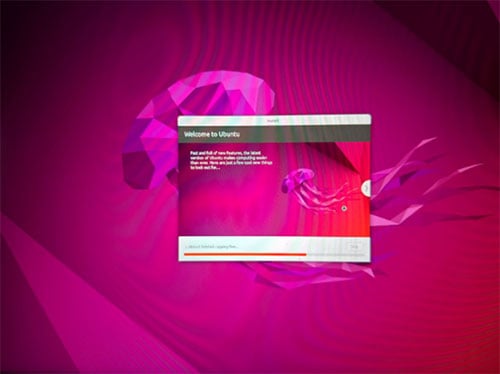
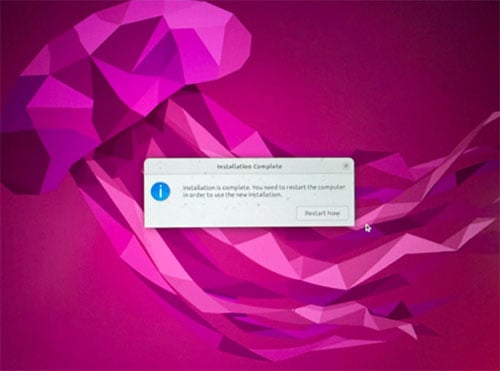
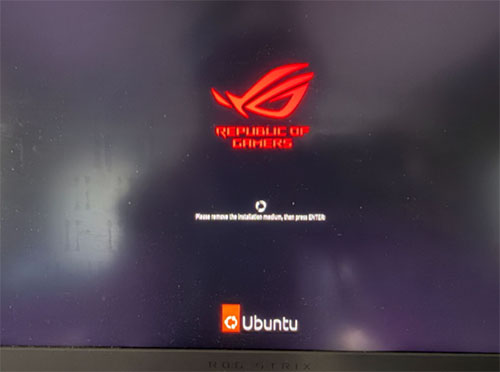
After finishing, it will start installing. This will take around 3 to 10 minutes. Once done, you will see a prompt to restart the computer. You must remove the USB and then click Enter.
Now, when you start your computer, you will see Ubuntu and Windows listed (as shown in the image). Just use the arrow keys to select the system you want to use and press Enter.
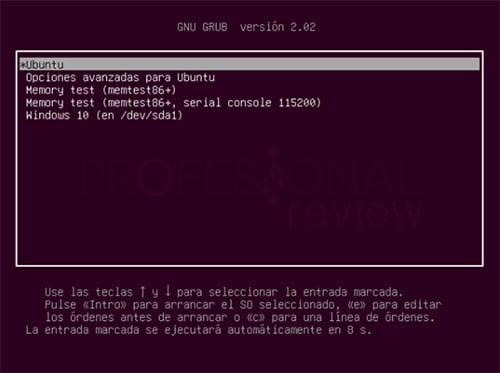
And that’s all! Now you have a dual-boot operating system with Ubuntu and Windows. That was easy!
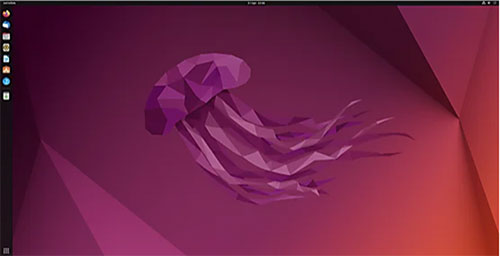
When you enter Ubuntu, you will see its interface.
After installing, I highly recommend updating all packages and drivers. Open a terminal window and type:
sudo apt update
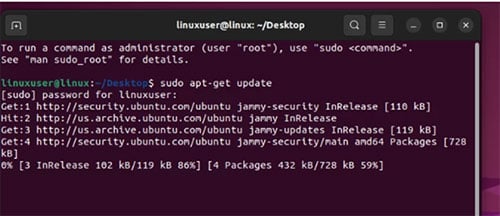
After it downloads, type:
sudo apt upgrade
Every time you use sudo (Super User Do), you will need to enter the password you created during installation.
If you have issues with drivers such as WiFi, Bluetooth, keyboard, trackpad, etc., you may need to check your computer brand’s support page. It's common to have some of these problems, and they usually have a solution, so don't worry!
The apps I highly recommend installing are Brave (as your browser) and VS Code, which usually comes with the installation.
Taking the first step into Linux can feel like stepping into the unknown, especially when you have to touch things like the BIOS or disk partitions. It’s completely normal to feel a bit nervous about "messing up" your computer.
The fear of seeing a black terminal window instead of a graphical interface will fade quickly. Soon, you’ll realize that the terminal isn't scary; it’s actually a superpower that gives you total control over your development environment.
If you encounter errors or if something doesn't work the first time, don't panic! In the world of Linux and robotics, running into bugs is actually the best way to learn. The community is massive, and almost every error message you see has a solution just a Google search away.
So, go ahead and experiment. Install ROS2, run your first simulation, and enjoy the freedom of an open-source system. Your journey into advanced robotics starts here.
RoBorregos, Hector Tovar, Monterrey, Mexico