






 Settings
 Fast Delivery
 Free Shipping
 Incoterms
 Payment Types


 Marketplace Product

Creating Colorful User Interfaces with Maker Touchscreens
Contributed By DigiKey's European Editors
2017-10-10
Microprocessor boards designed for the maker community have not only caught the imaginations of inventors keen to enter the electronics world, but also those of professional engineers. Independent consultants, new startups, and teams in large engineering organizations all face time and cost pressures when developing new products. These can be overcome by utilizing economical boards, expansion modules, and code examples that have grown up around maker communities.
A test bed can be quickly configured using off-the-shelf hardware to implement basic functions such as wireless connectivity. Bypassing challenges like getting RF circuits working or writing low-level drivers, engineers can quickly turn their attention to developing the higher level differentiating features of their application.
A large variety of expansion boards are available from numerous vendors, taking advantage of established ecosystems such as Arduino, which provide an easy way to add special features such as motion or environmental sensing, occupancy detection, proximity sensing, MEMS microphone, GPS receiver, or others. These resources can help engineers accelerate the time to get a proof of concept up and running.
Creating a professional user interface
A typical maker approach is to build a simple breadboard-based project, using mechanical switches and LEDs to demonstrate the major functions. For a more professional looking user interface, an LCD module or graphical TFT display could be designed in and combined with buttons, a keypad, or a touchscreen sensor.
Various graphical color TFT-LCDs are positioned for use with popular maker boards. Depending on the model, they may be a breakout board connected using individual wires, or may be designed to plug directly into the main board’s expansion headers. Several brands offer suitable displays, including those familiar to makers such as Adafruit, DFRobot and Mikroelektronika, as well as those perhaps more familiar in professional engineering circles like FTDI. Popular products range from tiny color TFTs in sizes below 1 inch, to touchscreen TFTs like the 2.8 inch Adafruit 1770, or larger touchscreens of 5 inches or more. The displays commonly also provide an SD card slot, which can be useful for storing bitmap images to be displayed on the screen.
Bringing board and screen together
The display may be built for use with a separate driver board, which can present a complex connection challenge. If it is not possible to plug the display directly into the driver, an adapter may be needed. On the other hand, if the driver is integrated into the display board, the user’s wiring task is eliminated.
Some displays, like the DFRobot DFR0387, are designed to plug directly into the expansion headers of popular development boards, creating a neat assembly that can be easily built into a front panel or portable enclosure. This 3.5 inch touchscreen display has 320 x 480 pixel resolution, and comes with three serial interfaces, an I2C port, and a 5 V power supply with selectable 5 V output or 3.3 V for use with Arduino DUE boards.
Once the hardware is connected correctly, the display can soon be up and running. Code samples that come with accompanying software libraries can often be adapted to customize a GUI with buttons or sliders, determine their screen positions, select colors, and define touch coordinates. An alternative approach is to design the GUI with graphical tools, and then create the corresponding code using either open-source or proprietary tools to simplify the task.
Approach 1. coding the GUI
To implement some basic touch sensitive buttons on screen, the design should consider the shape, size and position of the buttons, color, and the visible response to confirm to the user that a touch has been detected. Suitable responses could be to change the color of the button momentarily or permanently, change the perimeter to a different color, to hide the button, or present a different user interface or image on the screen. The touchscreen area needs to be mapped to the same overall area of the display, and the code needs to be written to detect a touch within the area of any of these buttons and generate the appropriate response.
Coding challenges can often be overcome by inspecting example applications that come with maker modules. One of these is Adafruit’s graphicstest, which draws features such as lines, dots, circles and text on the display. Inspecting the source code for these examples gives basic information about how to create custom applications for presenting graphics or images, such as the required libraries for controlling the hardware, the correct chip-select pin numbers for activating the SD card controller or TFT driver IC, and others.
The Adafruit FT6206 libraries for capacitive touch displays contain an example program, CapTouchPaint, which creates five touch sensitive buttons to give the user a choice of painting with red, yellow, green, cyan, blue, or magenta. The remainder of the screen is available for painting, and will present dots or lines of the selected color when touched.
The CapTouchPaint source code shows how a set of touch sensitive buttons can be created in specified positions of a specified size, shape, and color. The code in Figure 1 shows how the color selection boxes are drawn on the screen. The default selection is set to red, indicated by a white perimeter around the box.
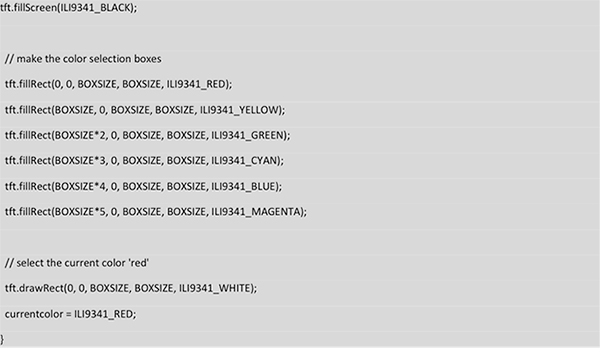
Figure 1: Adafruit demonstration code for drawing the color-selection boxes on TFT display.
The CapTouchPaint example also shows how touch points are detected. The code excerpt in Figure 2 describes how touch detection changes the selected color button.
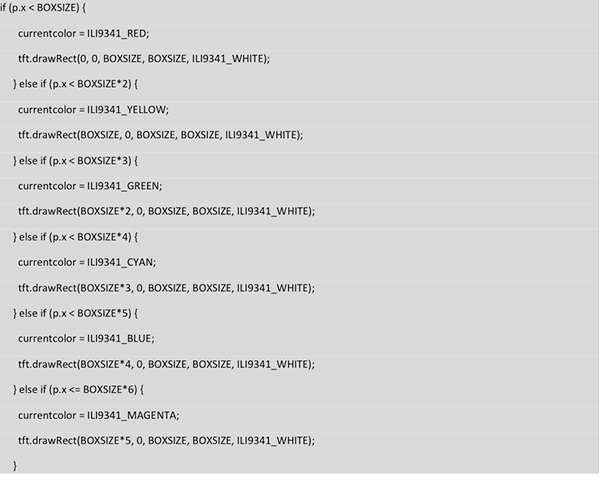
Figure 2: Controlling buttons by detecting touch points.
One of the many powerful aspects of open-source code is that users are free to use and adapt the code in their own programs. Using this to provide a head-start, it is not difficult then to enhance the features, such as by adding text to describe the function of each button, such as start/stop, forward, reverse, or menu choices.
Another approach, which could be used to create a more highly featured control panel, is to describe the user interface graphically as a bitmap to be written to the display. One or several .bmp image files describing the various user interface screens can be stored in the controller board memory, for example in Arduino on-board Flash, or on an SD card. Figure 3 shows how adding the SD card library .h file to the “include” list allows the code to retrieve data from the card.
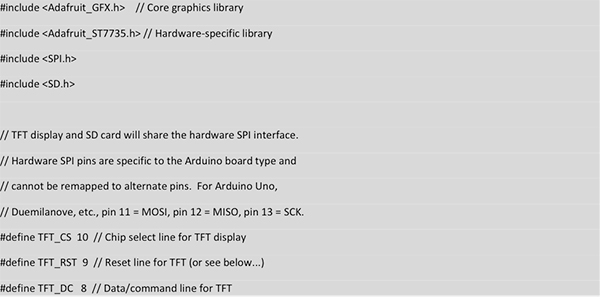
Figure 3: Enabling the application to communicate with the SD card.
There are several examples available that demonstrate how to retrieve a .bmp file from memory and present the image on the display. Figure 4 shows a code excerpt from the Adafruit spitftbitmap example, which is written for the controller used in the 1.44 inch 2088 and other similarly sized Adafruit TFT displays. Many alternative bitmap viewer programs are available online.
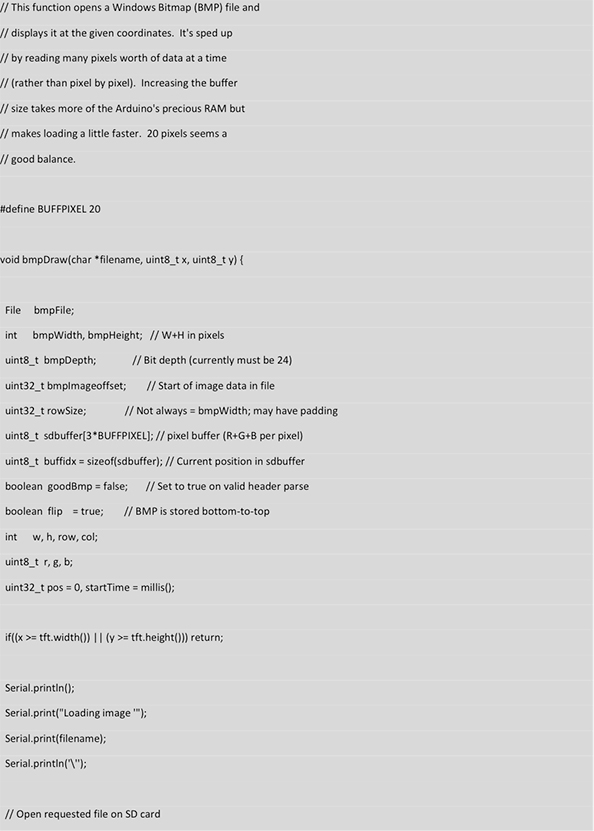
Figure 4: TFT controller code for displaying bitmap files.
Approach 2. using graphical design tools
A blog posted by Memory Imprint Studio suggests how graphical design techniques can be mixed with programming to help create sophisticated user interfaces. It suggests using a vector graphics editor such as the open-source Inkscape editor to create the look and feel of the user interface, represented as a graphical SVG file. Setting the artboard size to the same size as the chosen TFT LCD ensures the positions of buttons, sliders or other features will be accurately replicated on the display.
The blog suggests using the EMACS open-source document manipulation tool to extract the coordinates from the SVG file. EMACS can automatically generate code to describe the graphical layout, which can then be uploaded to the Arduino. The approach described here also references the fact that an application like a vector graphics editor uses 24-bit color, whereas some maker boards do not support standard 24-bit but may instead support 16-bit or 18-bit color depth. To help developers ensure on-screen graphics are rendered in the desired color, Memory Imprint Studio offers an RGB 5:6:5 calculator that generates the correct equivalent hexadecimal code in Arduino-compatible 5:6:5 format, for any desired color.
Jeremy Saglimbeni, a maker who will be familiar to many Adafruit users, also tackled 8:8:8-to-5:6:5 color translation when developing a menu-based user interface for a simple home automation system, using an Adafruit color TFT display and Arduino board. This demonstration contains multiple different screens that allow home automation users to control various systems in the house, and allows adjustment of key user interface preferences such as brightness and sleep time. Setting the sleep time to turn off the display backlight after a few seconds of inactivity helps to save energy in battery powered applications. It also shows how a battery fuel gauge can be created by periodically monitoring the battery voltage as an indicator of the state of charge. When the voltage falls to a threshold level, the color of the remaining pixels filling the battery icon is changed to red as a visual warning to the viewer.
More help to plot graphics on TFT displays controlled by the ILI9341 chip, like the Adafruit 1770 and others, can be found at Instructables. This example shows how to display images stored in the Arduino’s on-board Flash, instead of an SD card on the display module, and is based on an example in the Adafruit_ILI9341 library.
FTDI supports a similar approach to development by making demonstration programs available on its website. These can be used with FTDI displays such as the CleO50A, which also provides interfaces for other hardware, such as a camera input and I2S and CAN bus interfaces.
Automating code generation
Because open-source software can be freely used and modified, no outlay is required to begin developing a graphical user interface by taking advantage of existing code samples and experiences shared by other makers.
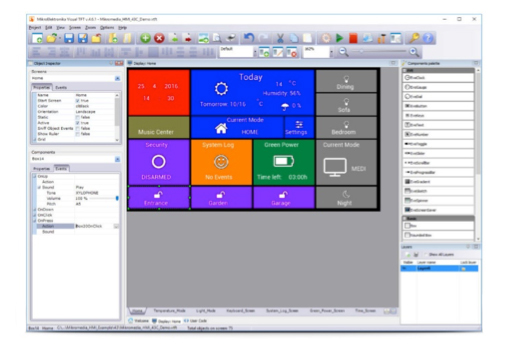
Figure 5: MikroElektronika Visual TFT helps makers create sophisticated GUIs using drag-and-drop.
If the development budget can find a few dollars for tools, an environment like Mikroelektronika Visual TFT (Figure 5) provides an inexpensive way for designers to create their GUI by dragging and dropping the desired visual elements into their project. These elements can be buttons, sliders, clocks, labels, animations, or other features. Users can create layers, group components as with a vector graphics editor, and define events that drive the underlying embedded system. The GUI is coded automatically in mikroC, mikroBasic or mikroPascal, as part of a unified workflow, and any modifications to the code can be done in the compiler IDE. Visual TFT natively supports all Mikroelektronika boards and controllers, as well as FTDI’s EVE GUI platform and graphics controllers. Visual TFT has recently been integrated with the compilers, which allows users to move forward smoothly from developing their ideas graphically to finalizing the code of their GUI.
Conclusion
The extensive selection of maker hardware and associated open-source code represent a valuable resource for professional engineers to jumpstart their projects. Beyond simply providing the parts to build a quick proof of concept, there are opportunities to create sophisticated prototypes with a look and feel close to that expected of the end product.
Touch sensitive color graphics displays are available from a variety of vendors, allowing engineers to quickly implement a professional looking user interface. Various approaches can be taken, leveraging example programs to directly code simple features, or creating a custom GUI using free online graphical tools or a proprietary environment like Visual TFT. Many credible community projects are accessible online, which can help professional engineers connect with the maker world and contribute to its continued success.

Disclaimer: The opinions, beliefs, and viewpoints expressed by the various authors and/or forum participants on this website do not necessarily reflect the opinions, beliefs, and viewpoints of DigiKey or official policies of DigiKey.












 Austria